Wednesday, December 12, 2018

Animate/Flash: Create Basic Motion Tween

Learn how to use Motion Tween:
Steps to follow:
  • Open a new flash file (Ctrl+N).
    New Document window will appear
    Select General panel and choose Type: Flash Document . Press OK.
  • If your timeline window is not open, press (Ctrl+Alt+T).
  • Now you can see a single Layer called "Layer1" in your timeline Window.

  • Title Layer 1, "Ball"(click on layer title to change name)
  • Select the first frame. Draw your image on the stage; you can either choose Rectangular tool or Oval tool from the tool box and draw your desired shape.
  • Select your object on the stage and press F8 to convert this image to a Symbol (or right click "Convert to Symbol"). Convert to Symbol window will pop-up.
    Name your Symbol what ever you like.
    Select Graphic behavior and press OK.
  • Your Symbol is in frame1 of Ball layer. Select frame 20 and press F5 to insert a new Frame (or right click "Frame")
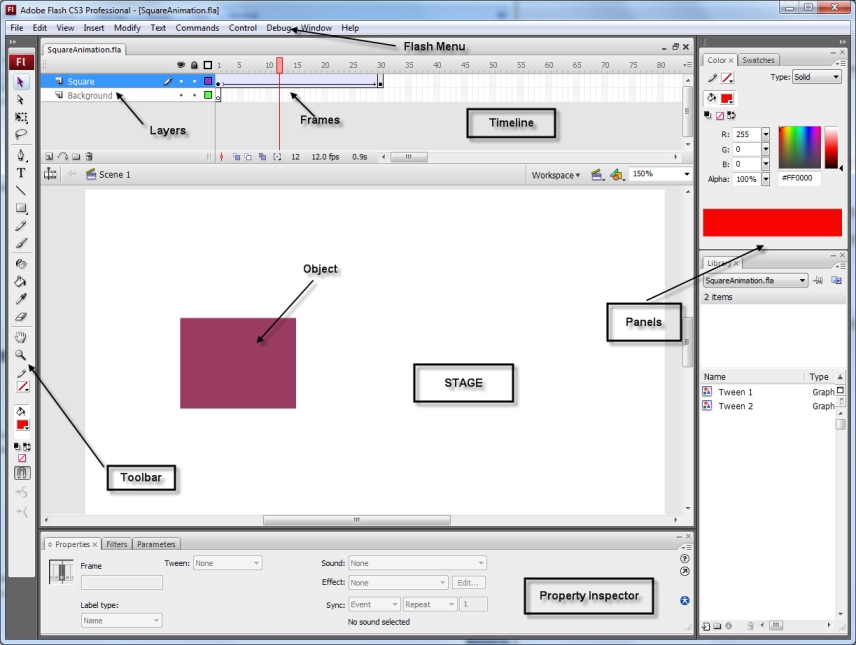
  • Select any frame between, 2 to 19, then right click select "Motion Tween". Now your Layer will look something like the one shown below. 
  • Still keeping playhead on frame 20, move your Symbol to any other position other than the present one. A key frame will magically appear on the timeline to indicate a change in movement.

  • Now press (Ctrl+Enter) to view your motion tween. 

Monday, December 10, 2018

Adobe Animate/Flash Intro

We are going to begin to learn how to draw and animate in Adobe Animate. Animate is a fun program that makes animation easy... well it takes a bit of time to learn, but there are many things it can do. It can help you create digital animations, help you design games, and help generate cool websites. I say it can help, because you are the designer and creator, you have to make the choices to create your piece.


We are going to learn about the following:
  • The stage
  • Timeline
  • Properties
  • Tool bar
  • Library
  • Document set-up
  • Scale
  • Colour- Tone/alpha
  • Frame by frame animation
  • Onion Skins

Friday, November 16, 2018

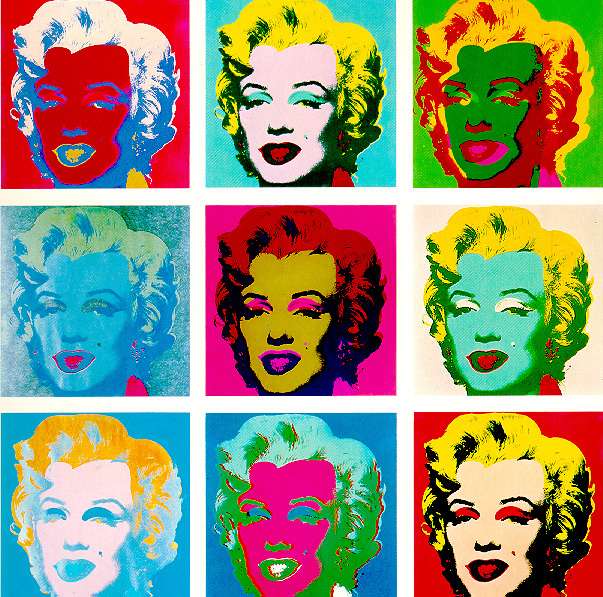
Photoshop Andy Warhol Portraits

We are going to play with your face using Adobe Photoshop. In this assignment, you are going to learn about basic photo editing and maniulation techniques while creating a multi- image "Andy Warhol" like piece.

First research Andy Warhol. Find a portrait and post it to your blog. Find some information about him and write interesting points about him, his work, and the significance of his work in your own words.

Then we need a photo of you- we will take photos in class of you.
We are going to learn about basic Photoshop Techniques:
  1. Basic tool bar functions.
  2. Sizing and cropping an image. 3 in x 3 in @ 300 dpi.
  3. How to adjust exposure- Image- Adjustments- Levels.
  4. Filters: Find Edges, Posterize, Cut Out, Brush Strokes, Artistic,
  5. Image- Adjustment techniques: Invert, Hue & Saturation, Posterize, Replace Colour
  6. and several combinations of the filters and adjustments.

Tuesday, October 16, 2018

Photoshop Portrait Editing Tutorials

'

We are going to take your portrait in the LFAS Photography Studio. You will have a few poses to choose from. But for now, use a portrait from Pexel:
https://www.pexels.com/search/portrait/
I have posted a couple of portraits above if you want to start.

Then you are going to edit/touch up your portrait. I will show you a few techniques, but try a few things on your own.

Here are some Phlearn tutorials:
Quick Start Guide Part 1- Essential things you should know about Photoshop:
https://www.youtube.com/watch?v=ryOgl4EDgn8

Quick Start Guide Part 2:
https://www.youtube.com/watch?v=uPtnmc2pRQo

Quick Start Guide Part 2:
https://www.youtube.com/watch?v=6vpC08fl96A

Fun Portrait Tutorials:
https://www.youtube.com/watch?v=zl-SZ0C1jLY

Layer masks- really important to learn in Photoshop:
https://www.youtube.com/watch?v=h5yW5hHjQrE

How to cut images out of the background:
https://www.youtube.com/watch?v=MmDmq8sQ2Yg

How to whiten teeth:
https://www.youtube.com/watch?v=RvCDzD_mDHo

Clean up eyes:
https://www.youtube.com/watch?v=Z33cgxtSYXY

How to change eye colour:
https://www.youtube.com/watch?v=zMmzoYZpg_Q

How to change hair colour:
https://www.youtube.com/watch?v=SfGupxCdIVQ

Friday, September 14, 2018

My Banner

Here is my banner with the clipping mask and drop shadow also with inner glow. I also lightened the text with image adjustments.