Here is a bunch of fun Photoshop tutorials:
https://design.tutsplus.com/articles/50-great-photoshop-tutorials-for-clever-beginners--psd-785
Photoshop Merge
Here are a few tutorials to challenge you to make a Christmas card...
https://youtu.be/_WKeXCkl2zQ
https://youtu.be/T62a5CuAYLg
https://youtu.be/H1lGBm_x0Mk
Sparkle Star Effect in Photoshop
Sparkle Star in Illustrator
Confetti Brush

Monday, December 12, 2016

Monday, November 21, 2016
Photoshop Portrait
Here are some Photoshop editing tutorials if your want to further your Photoshop skills...
http://photoshoproadmap.com/35-creative-portrait-effects-photoshop-tutorials/
We are going to learn about Photoshop.
Basic Photoshop Techniques
- Basic tool bar functions.
- Sizing and cropping an image.
- How to adjust exposure- Image- Adjustments- Levels.

- Duplicate your portrait layer (the one with the original photo called "Background", right click on the layer, select Duplicate).
- Experiment with Filters (in the filter menu). Make a New Duplicate layer for each of the filters, but turn off the Visability of the other filter layers with each one. Label your layers with the corresponding filter effect.Try:
- Sketch>Stamp,
- Stylize>Find Edges,
- Artistic>Cut Out,
- Brush Strokes> you choose
- Pixelsate> Color Halftone
Hue & Saturation
- Open a new portrait and check out the "Hue & Saturation" Adjustment layer.
- Click colourize and experiment with the saturation and levels.
- Change the colors and "Save As" the filter name for each of the filter experiments.
- Then try a few Image> Adjustment techniques :
Then we are going to create a composite of 9 manipulated portraits to post to your blog.
Wednesday, November 16, 2016
Portrait Studio Sessions Today
Look your best. We are going to take photos of you in the LFAS photo studio. While you are waiting, work on your self-portrait objects/elements in Illustrator. Then we will have an introduction to Photoshop next.
Sunday, November 6, 2016
Computer Arts Term1
Here is a list of assignments for Term 1:
Computer Arts 9
Computer Arts 9
- About Me
- Pen Tool Tutorials
- Pear with Background
- Vector Animal with Background
- Apple Mesh Tool
- About Me
- Banner- Ribbon scroll, brush swirl, Illustrator font.
- Graphic Mind Map- Five+ points about you arranged graphically with images
- Self-Portrait Illustrator re-created images: 1, 2, 3, 4
Wednesday, October 26, 2016
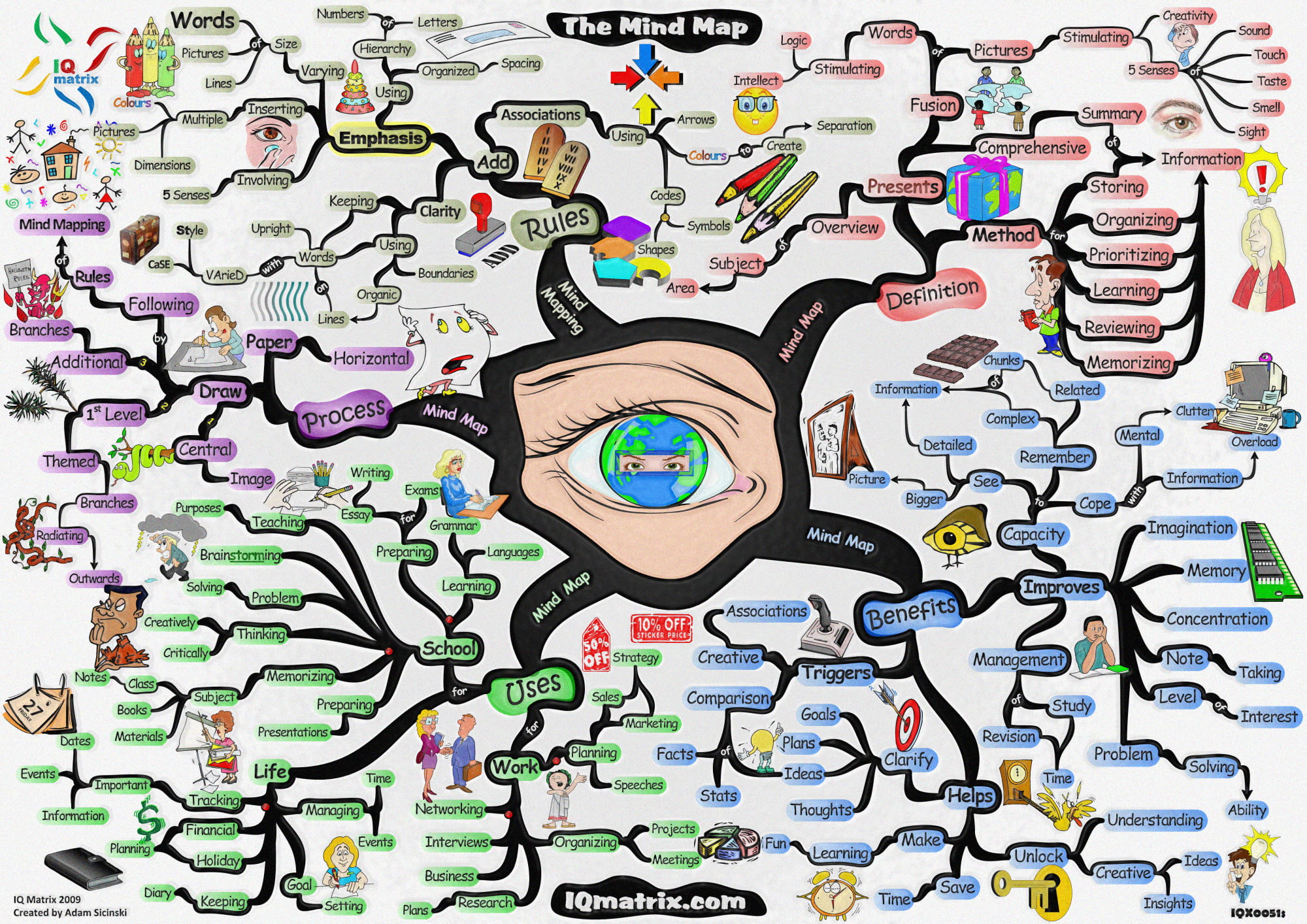
Graphic Mind Map
Start with you in the centre.
Include 10+ things about you- interests/hobbies, family, personality, education, pastimes, history
Arrange your information in a meaningful/graphic way to describe you.
Use the Text tools to arrange your information graphically.
Include images to represent key parts of who you are.
Draw items that reflect something about you.


Friday, October 7, 2016
Self-Portrait Illustration
Next we will take your portrait learn about Editing using Photoshop and cut/paste and draw over top of your portrait. using illustrator, but first we are going to explore the elements of design: lines, shapes, textures, forms, and colour.
Illustrate some of the things that interest you and arrange them in a meaningful way around your portrait so that they look a part of your image. Like they are exploding from you or emitting from your aura. We will learn how to draw swirls, and simple objects using Adobe Illustrator.





Monday, October 3, 2016
Illustrator Mesh Tool Basics
One of the most amazing and confounding tools in Adobe Illustrator is
probably the Gradient Mesh tool. Working with this feature allows the
user to divide almost any shape into a mesh. Each intersection of two
lines (horizontal/vertical) can be colored with a solid color. Practice with the mesh tool so that you can use the Mesh tool better. In this tutorial, we'll show you some tips that will improve your
Mesh work.


The solution could be split into two parts. The first one is to start with a rectangle or an ellipse, convert them into a mesh and then distort them to the shape we want. The second solution is to work with multi-parts, which are symmetrical shapes - one on top of the other.

Gradient Mesh Assignment: Select one of the images saved to the share folder. Beginners select either the apple, yellow pepper, or the pumpkin. More advanced students select more complex images to mesh- Old telephone, sports car, army boot. Make sure to File> Place the image onto Illustrator and turn the image into a Template and then add a layer to draw onto. Envision each separate area as different shapes.
1. Introduction
I would like to thank Itai Lustgarten and "Design Tuts" for writing this tutorial. Itai is a fellow graphic artist, designer and lecturer. We have both been in the industry since 1990. We both teach Illustrator, Photoshop and pre-press procedure in Mentor academy and several academies in Israel.2. Creating a Basic Mesh
After selecting a shape (non compound shape, choose Create Gradient Mesh from the object menu. At the command window you can define the structure of the mesh - the number of rows and columns. Notice the mesh lines defined by the original outline of the shape.3. Adding Points to a Mesh
Another way to add a point to a mesh is by using the Mesh tool and clicking anywhere in the shape's area.4. Colorize The Mesh
After converting a shape into a mesh, you can select points with three tools: Mesh tool, Direct selection tool, and the Lasso tool. All you have to do now to add color to the mesh is select a color from the swatches palette, or use the eye dropper tool to select a color from an image.5. Moving Points
If you need to move a point on the mesh shape, choose the Mesh tool or the Direct Selection tool, then click on a point and drag it (holding the Shift key will drag the point in a horizontal/vertical line only).6. Meshing With Shapes
In order to achieve the best result with a mesh, one has to use a symmetrical shape since the mesh uses an equal number of anchor points on each side of the shape. The problem is what happens when we want to make a complex shape. Look below at the result of the non-symmetrical shape versus a symmetrical shape.The solution could be split into two parts. The first one is to start with a rectangle or an ellipse, convert them into a mesh and then distort them to the shape we want. The second solution is to work with multi-parts, which are symmetrical shapes - one on top of the other.
Gradient Mesh Assignment: Select one of the images saved to the share folder. Beginners select either the apple, yellow pepper, or the pumpkin. More advanced students select more complex images to mesh- Old telephone, sports car, army boot. Make sure to File> Place the image onto Illustrator and turn the image into a Template and then add a layer to draw onto. Envision each separate area as different shapes.
Subscribe to:
Posts (Atom)