Friday, September 23, 2016

Finishing your Shape Animal Illustrator

Once you have completed tracing your owl, dog, cat... Then
Personalize your Critter:
  1. Personalize your critter with swatches, colours, and creative adaptations. [in the swatch panel, there is a hidden menu to the top right of the window- click on the tiny arrow and select Swatch Library> Patterns...] experiment with different pattern and colour swatches.
  2. FILE>SAVE AS your Critter Drawing as a .ai [Adobe Illustrator] file.
  3. FILE>EXPORT> your image as a PNG
  4. Post to your blog. Remember to Title YOUR POST! Critter Drawing or"Owl Drawing".
  5. Write a brief reflection about your illustration.
Background: Next find a simple, but fitting background to place your critter into via Google. Approximately 2000-3500 pixels.
  • Save it to your file.
  • Start a new Illustrator document
  • File >Place your background image into the document.
  • Then right click on the layer and turn it into a 'Template'
  • Add a new layer
  • Consider the different shapes and areas you can trace in a full circle or full square. Visualize your image into layers of basic elements.
  • Title your layers by the items or areas you will section.
  • Draw the background.
  • We will add your creature to the background later.
Have fun, be creative with your fill, and adapt in meaningful ways that work with the image

Monday, January 18, 2016

Term 2 Check List

Illustrator Mesh Tool- 3D    /25

Picasso Cubism Research     /5

Photoshop Portrait 1- Picasso Multiple Perspectives     /20

Photoshop Portrait 2- Picasso Cubism      /25

Photoshop Portrait 3- Texture       /25

Photoshop Portrait 4- Monty Python       /10

Current Projects
Animation Exercises- [Classic Tween, Motion Tween, Shape Tween, Colour Effect, Scale Tween, Bouncing Effect] /10
Circle: Short Animation Project-      /25

Monday, January 4, 2016

Photoshop Portraits Project Check List

Here is a list of all of the Photoshop projects; make sure that they are completed and posted to your blog.
  • Picasso Inspired Multiple Perspectives- Copy/paste and combine two portraits together using Adobe Photoshop. Blend the two or more portraits to look like they are really one person.Try the eraser tool, lighting, blend, stamp, brush tool, different brush sizes and pressures.
  • Fractured/Cubist Portrait- Cut and paste parts of yourself so that you will appear to have multiple parts like a puzzle coming apart or exploding. You can try a weave pattern, or square shapes, or more erratic shapes. Try using the drop shadow to make the pieces look like they are physically there. [25+ cut and pasted parts]. Include a background that will appear behind the parts you cut out. What would be inside of you
  • Textured Portrait- Select using the square marquee tool and add a different filter to different areas of yourself. You can use more than one filter effect to each area. Try 50+ different filters and combinations.
  • Cracked/Monty Python Inspired Portrait: Make what is inside of your head explode out of it. Cut off the top of your head and have different interests, parts of your personality pop out. You will have to copy and paste then scale the items that you choose.


Thursday, November 12, 2015

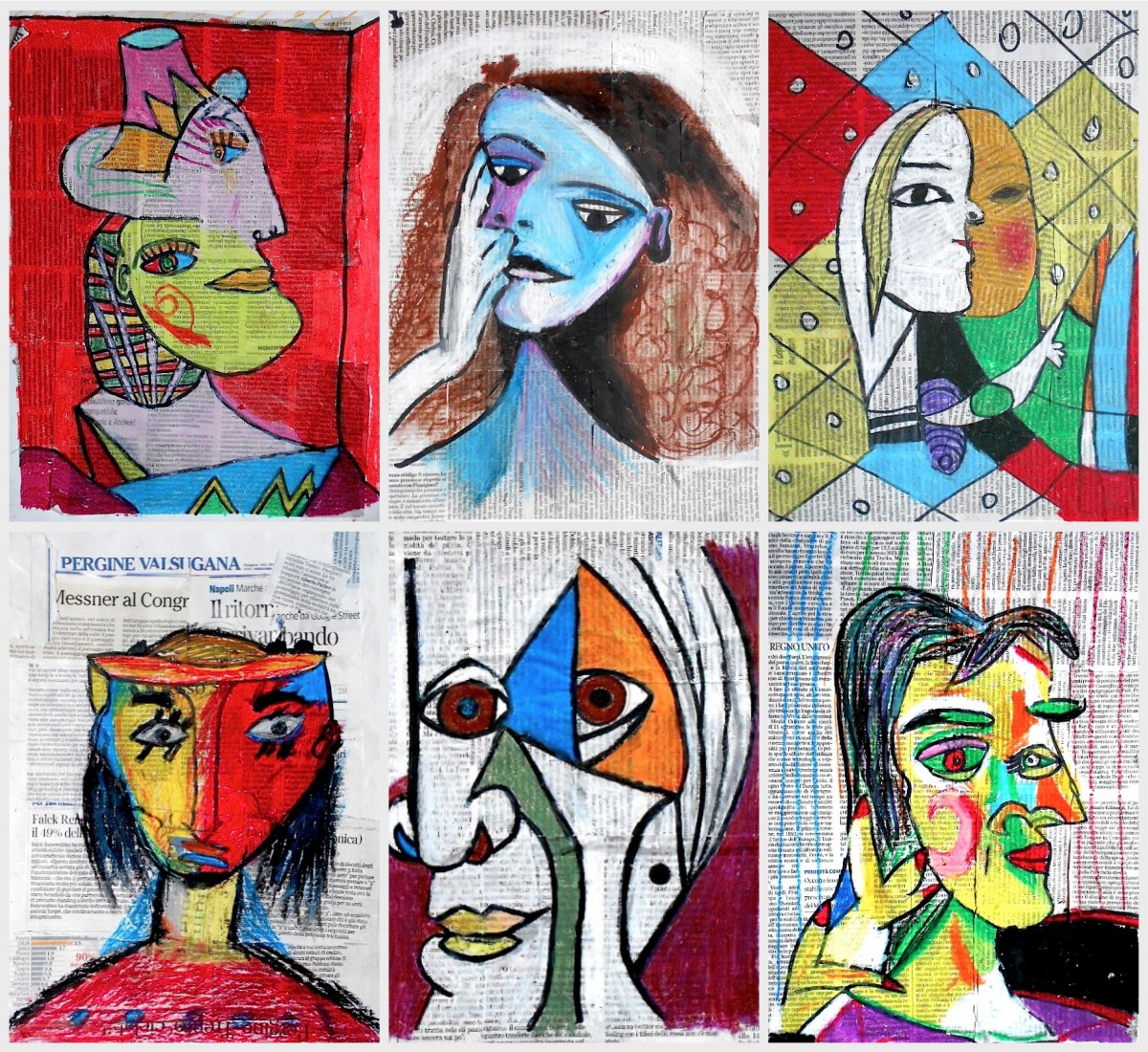
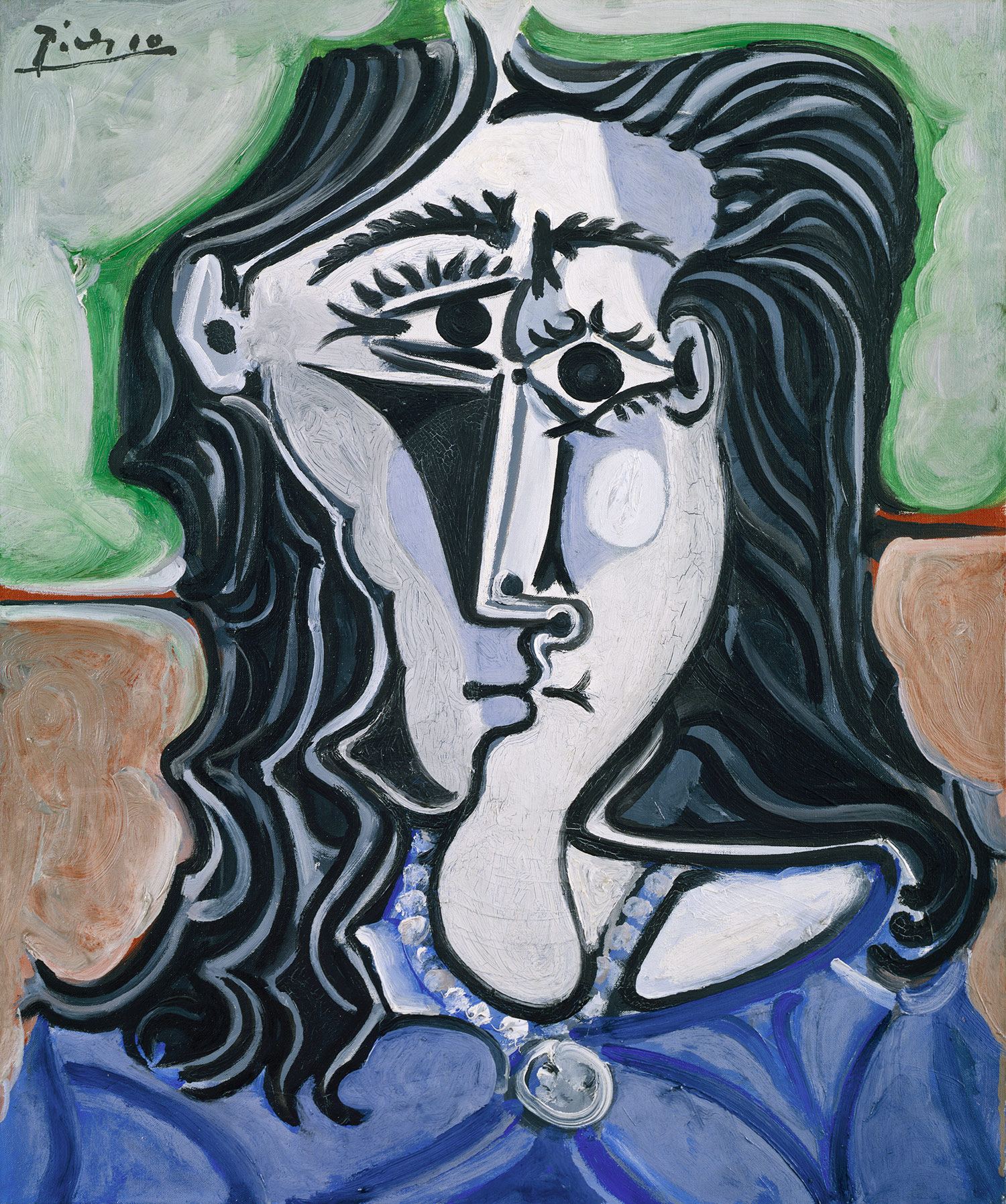
Pablo Picasso and Cubism

Pablo Picasso was a Spanish painter, sculptor, printmaker, ceramicist, stage designer, poet and playwright who spent most of his adult life in France. As one of the greatest and most influential artists of the 20th century, he is known for co-founding the Cubist movement, the invention of constructed sculpture, the co-invention of collage, and for the wide variety of styles that he helped develop and explore. Among his most famous works are the proto-Cubist Les Demoiselles d'Avignon (1907), and Guernica (1937), a portrayal of the Bombing of Guernica by the German and Italian airforces at the command of the Spanish nationalist government during the Spanish Civil War.

Guernica
Cubist Portraits with Collage
Picasso Assignment 1:
Find a "Cubist" painting by Pablo Picasso and post it to your blog. Write a brief outline bio of who Picasso was. Then define Cubism (in your own words).
Then have your portrait taken in the LFAS Photo Studio (Side profile and front).

Information about Picasso: www.pablopicasso.org
Check out this fun Picasso link: http://www.picassohead.com/

Wednesday, October 21, 2015

Assignment Check List

Make sure you have the following assignments posted to your blog:
  1. Banner and banner adaptations, Wordle to finished piece.
  2. Illustrator Tutorials- Pear loaded to blog, Tutorials saved to Share folder [or guest if you didn't have an account yet].
  3. Morphed Letter. [10s only].
  4. Illustrator "Critter" Drawing [ 10s with chosen image].
  5. Illustrator "Critter" Drawing Reflections.
  6. "Critter" Drawing with background. Save to Critter Share folder for a class sharing.

Wednesday, October 14, 2015

Final Creature Illustration

Export your final critter illustration [without the original/template and without the background]. EXPORT as a PNG (retains the color better).
Post your critter to your blog.
Write a brief reflection about your critter illustration; include the following prompts:
  1. Why did you choose this illustration to trace? 
  2. How did you adapt your drawing? What colours (or swatches) did you change?How did you select the colours?
  3. Did you change any parts to the animal? If so, why? or if not, why not?
  4. How does this drawing represent you? 
  5. What sort of challenges did you have in learning how to draw with Adobe Illustrator.